
Playwright MCP
but for Flutter
Enable AI agents like Cursor, Claude, and Antigravity to interact with your Flutter apps. Your AI sidekick that helps you test while you develop.
What is Marionette MCP?
Marionette MCP bridges the gap between AI coding assistants and running Flutter applications. It provides a Model Context Protocol server that lets AI agents see your widget tree, interact with UI elements, and capture screenshots — all in real-time.
Inspect
See the complete widget tree and identify interactive elements in your app
Interact
Tap buttons, enter text, scroll views, and navigate through your app
Capture
Take screenshots and retrieve logs for visual verification and debugging
Watch the Magic
See how AI agents interact with Flutter apps in real-time
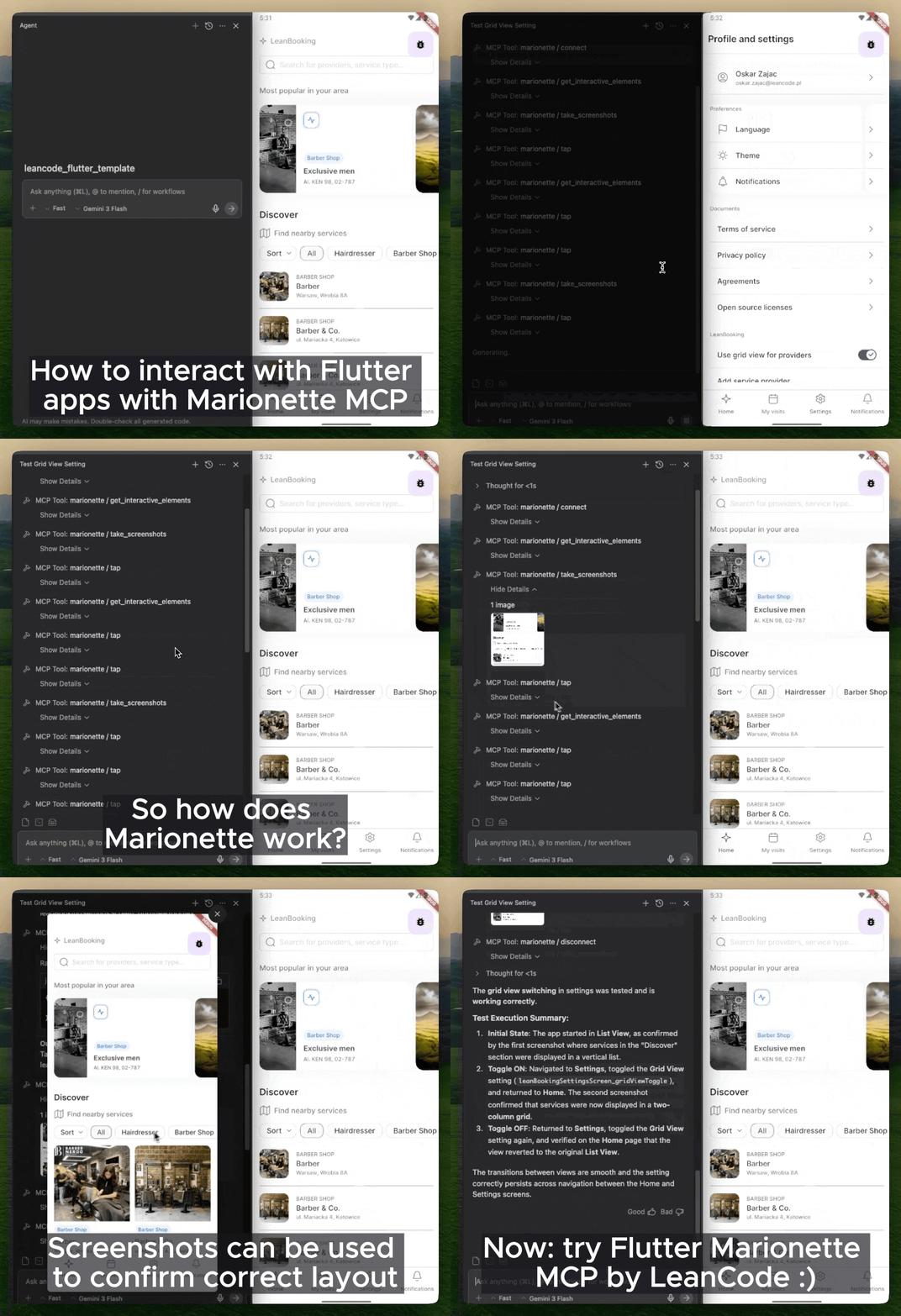
AI agent navigating, tapping, and entering text in a Flutter app
Everything your AI needs
A complete toolkit for AI-powered Flutter app interaction and testing
connect
Connect to a Flutter app via its VM service URI
get_interactive_elements
Returns all visible interactive UI elements
tap
Tap elements matching a specific key or text
enter_text
Enter text into text fields
scroll_to
Scroll until an element becomes visible
get_logs
Retrieve application logs since last check
take_screenshots
Capture screenshots of all active views
hot_reload
Hot reload the app without losing state
How it works
Your Flutter app initializes MarionetteBinding, registering custom VM service extensions
The MCP server connects to your app's VM Service URL
When an AI agent calls a tool (like tap), the MCP server translates this into VM service extension calls
The Flutter app executes the action (e.g., simulates a tap gesture) and returns the result
Quick Start
Get up and running in minutes
Install the MCP Server
Activate the global tool:
dart pub global activate marionette_mcpAdd Flutter Package
In your Flutter app directory:
flutter pub add marionette_flutterInitialize in Your App
Add MarionetteBinding to your main.dart:
import 'package:flutter/foundation.dart';
import 'package:marionette_flutter/marionette_flutter.dart';

void main() {
  if (kDebugMode) {
    MarionetteBinding.ensureInitialized();
  } else {
    WidgetsFlutterBinding.ensureInitialized();
  }
  runApp(const MyApp());
}Configure Your AI Tool
Add to your Cursor's .cursor/mcp.json:
{
  "mcpServers": {
    "marionette": {
      "command": "marionette_mcp",
      "args": []
    }
  }
}Connect and Interact!
Run your Flutter app in debug mode, grab the VM service URI from the console (e.g., ws://127.0.0.1:12345/ws), and ask your AI agent to connect!
Works with your favorite AI tools

Ready to puppet your Flutter app?
Start testing your Flutter apps with AI assistance today. It's open source and free to use.